GYMGAPLAY INSTRUCTIONS
ACCESS
PERMISSIONS
WEBCAM & UI
CONFIGURATION
Permissions
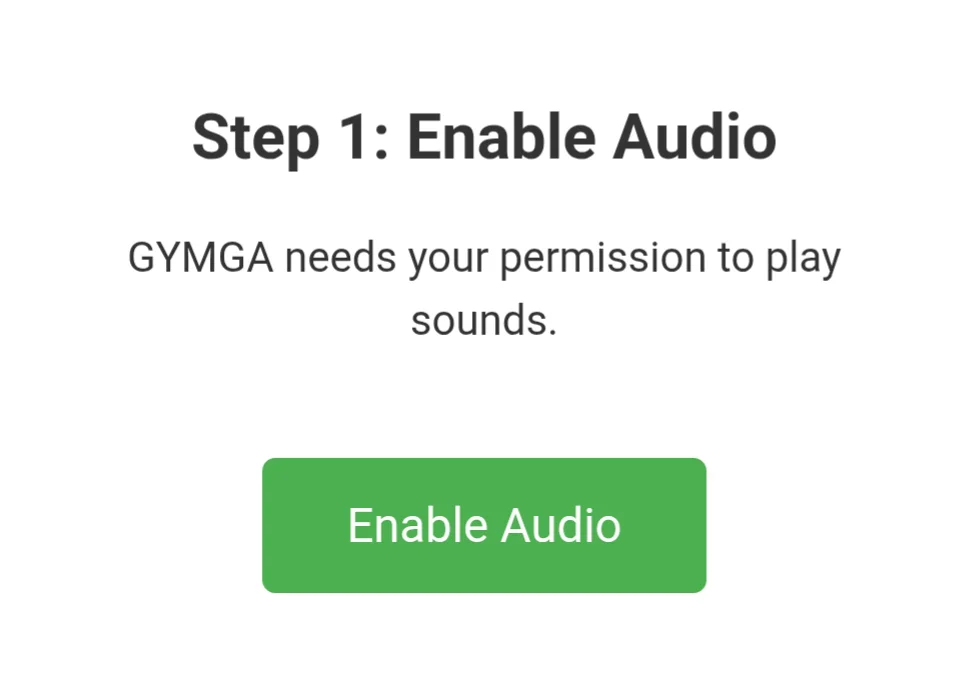
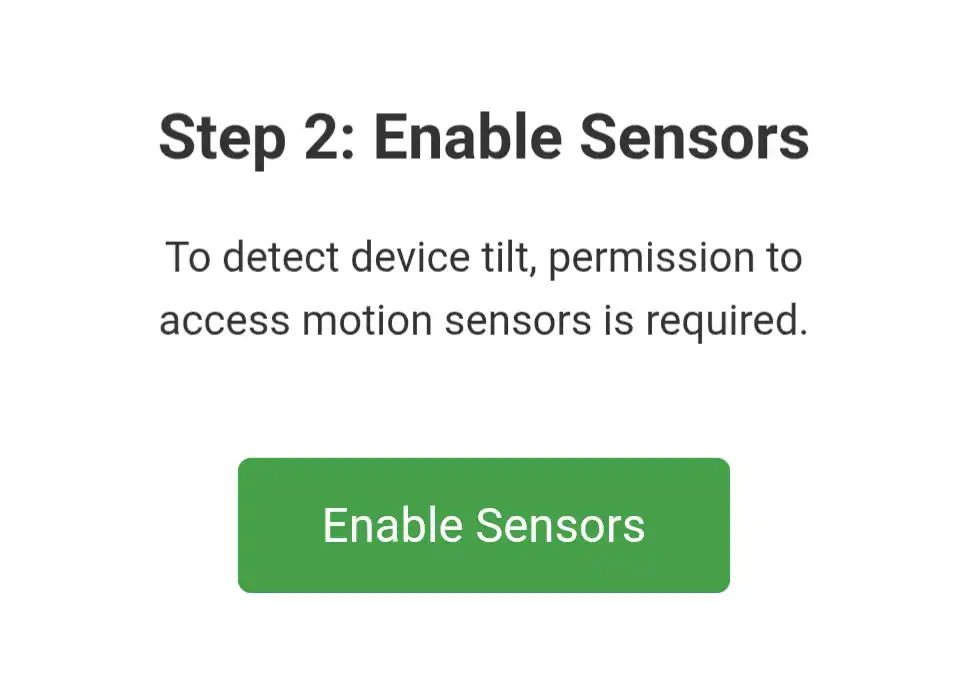
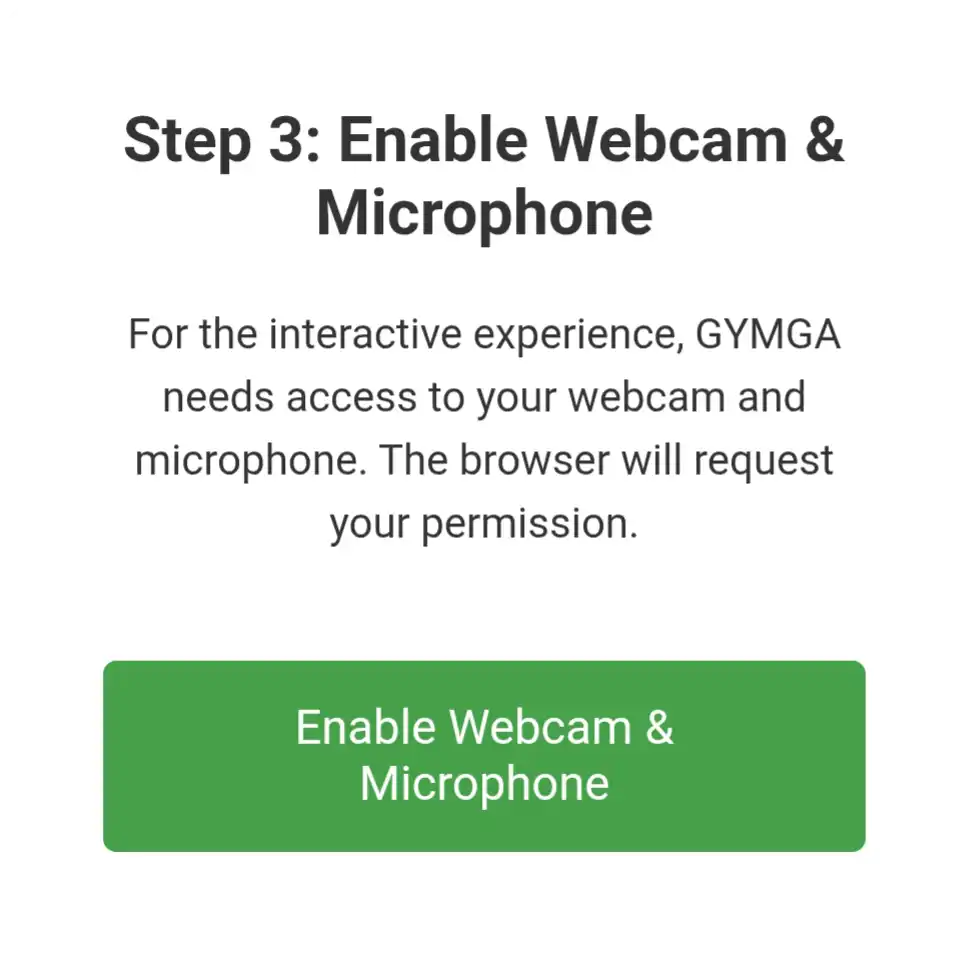
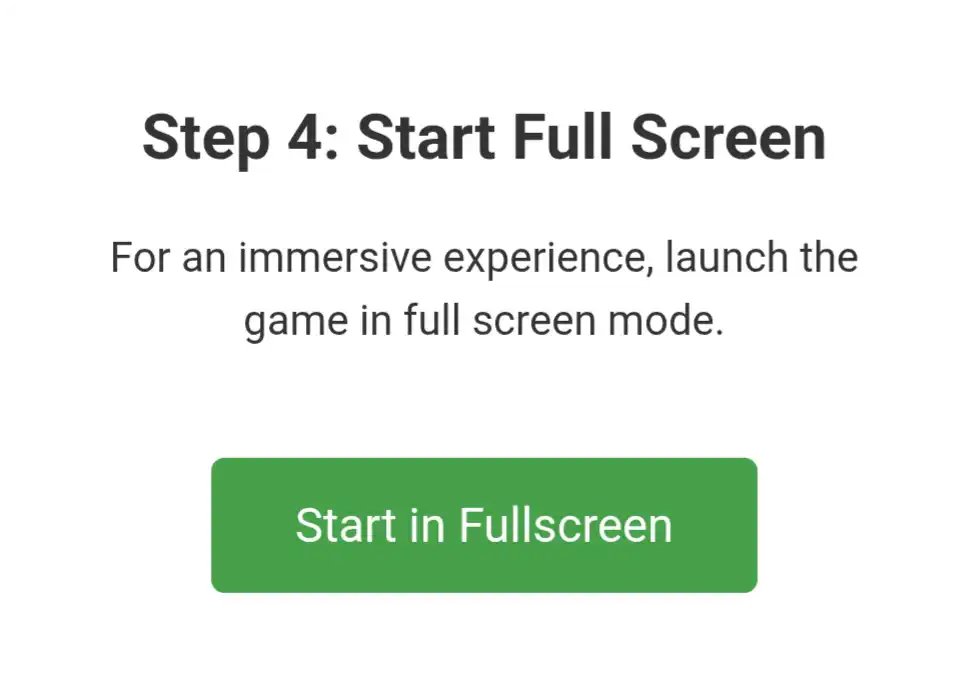
Gymga-Apps require webcam, microphone, sensor, and audio permissions, plus full-screen mode to run.
Webcam & UI
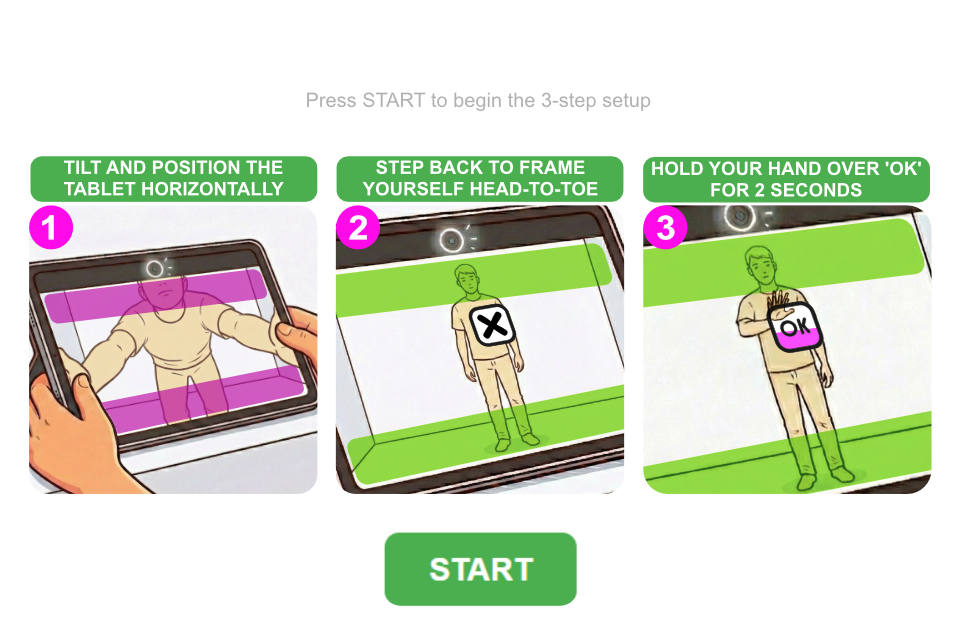
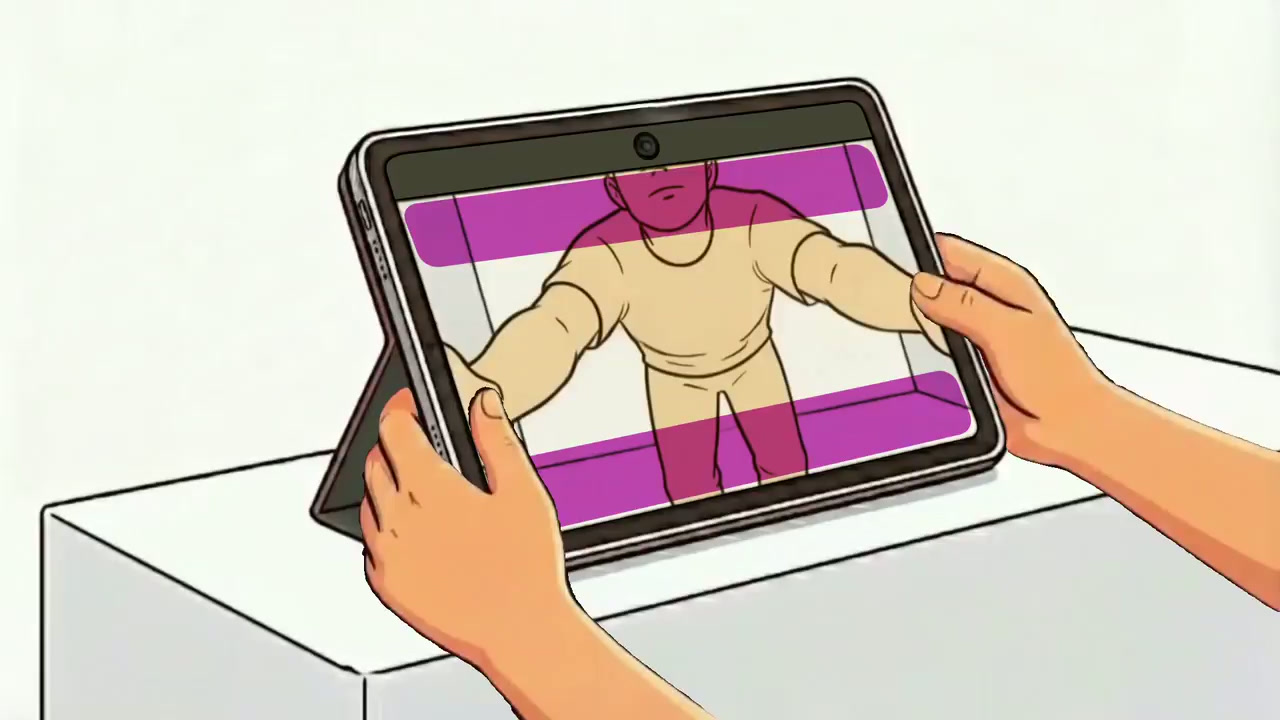
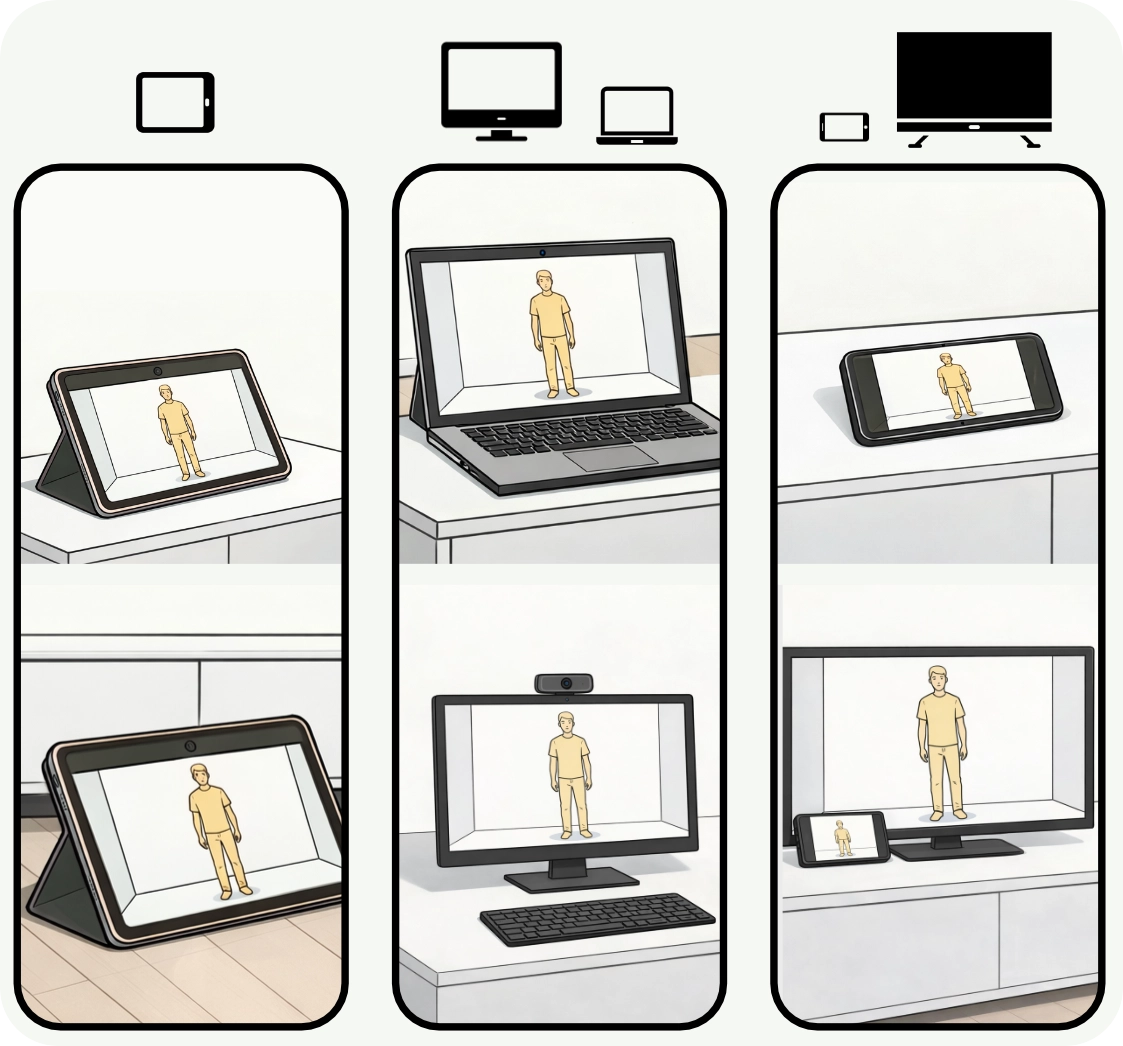
For Gymga-Apps to function correctly, it is essential to position the webcam so that it captures the user from head to toe.
This is a simple 3-step process:
Position your device and tilt the webcam (on your tablet, laptop, smartphone, or computer) to frame the user.
Step back a few paces until the two magenta bars for the head and feet turn green.
Hold your hand over the 'OK' icon for 2 seconds.
Configuration
Gymga-Apps can be used on any device equipped with a webcam and at least 6-8GB of RAM.
Useful Tips:
A wide-angle webcam is recommended to stay within a distance of 2–2.5 meters from the screen.
Smartphone use is optimal when paired with screen sharing (mirroring) to a Smart TV.
For children, placing the device on the floor can be an excellent solution.
Accessing Gymga-Apps
You can access games and experiences in 3 ways:
1. By logging into the GymgaPlay Store if you have a @gmail.com account
2. Via a sharing link, by copying and pasting it into your browser's address bar (also works via WhatsApp)
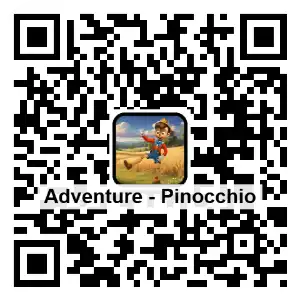
3. By scanning the QR Code of your desired game or experience card
via @gmail
Via Link
Log in to GymgaPlay Store
GymgaPlay Store


Click/Tap on Login
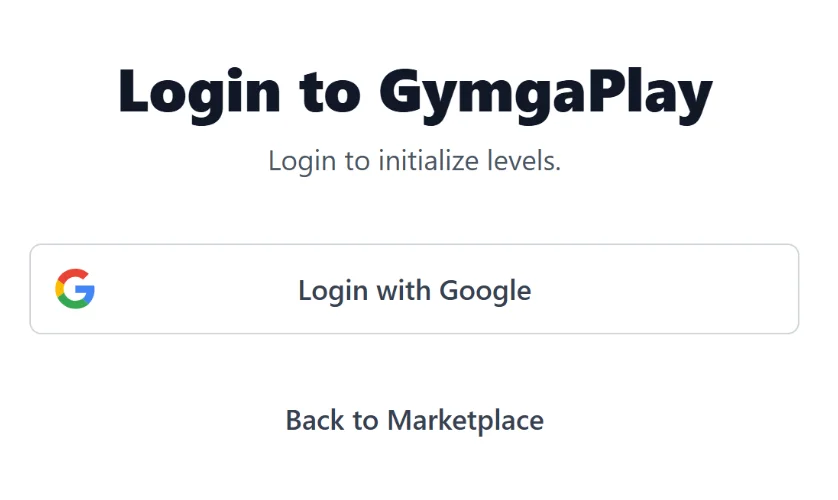
Select Login with Google
Via QR Code
Access the GymgaPlay Store
Click the share icon of the desired game/experience

Click on the address bar, paste the copied link, and press enter
Click on the QR Code tab of the desired game/experience
Scan the QR Code with your device's camera